
📊 Checking Media Usage Count
Every media file in your library comes with a usage counter showing how often and where it appears across your site. Mediapapa add an optional column in the List view. Or you can see this counter in the optimization modal by clicking any media in the Library.

Click on this usage counter to open a modal showing you where your media is used. Then click on a post page or custom post type to go directly to it.
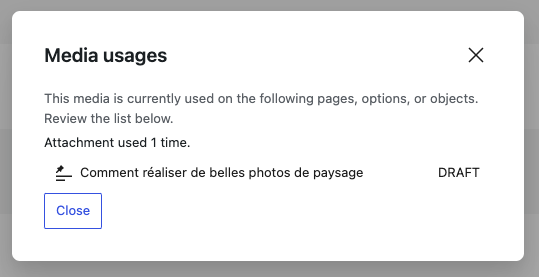
❓ What are the content supported ?
Mediapapa is fully compatible with the two most widely used page builders on WordPress: Gutenberg (native editor) and Elementor.
Mediapapa support :
- Options
- Classic and Editor content types
- User meta and fields
- Post meta and fields
- Term meta and fields
- ACF metadata (users, options, post, term), repeaters and flexible content
- All Gutenberg blocks
- All Elementor blocks and options
When saving these kinds of objects, Mediapapa will try to find occurrences of media of your website into it. We search for the urls and for the ID that can be stored into your database.
Multisite is also supported. Every website have its own indexing table, so all sites are independent.
⚠ Warnings Before Deleting Used Media
If you attempt to delete a file that is still in use, Mediapapa will show a warning message first.
- The alert tells you the file is linked to existing content.
- A list of posts/pages where the media is used is displayed.
- You can then decide whether to cancel the action or delete the file anyway.
This prevents broken layouts and missing images across your site.
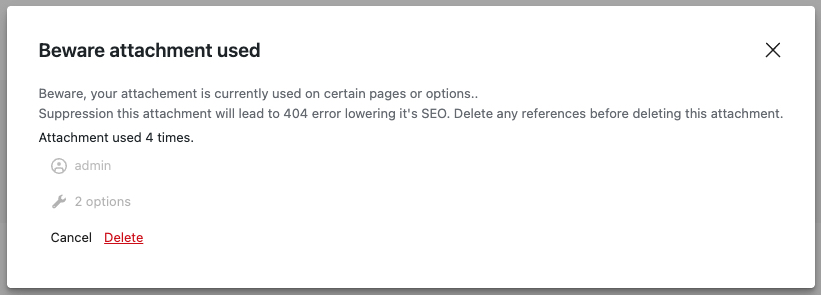
Mediapapa is not handling the deletion links in the native media modal
🗑 Identify Unused or Orphaned Media
Mediapapa also helps you spot orphaned media files, files that aren’t used anywhere on your site.
- In the Media Library, filter by Unused media.
- Review the list to select the ones you don’t need anymore.
- Delete safely with confidence, knowing that unused files won’t affect published content.
This process saves storage space, improves performance, and makes your media library easier to manage.